Hello guys,today Your admin "Kunal Vohra" back with some amazing and cool tricks
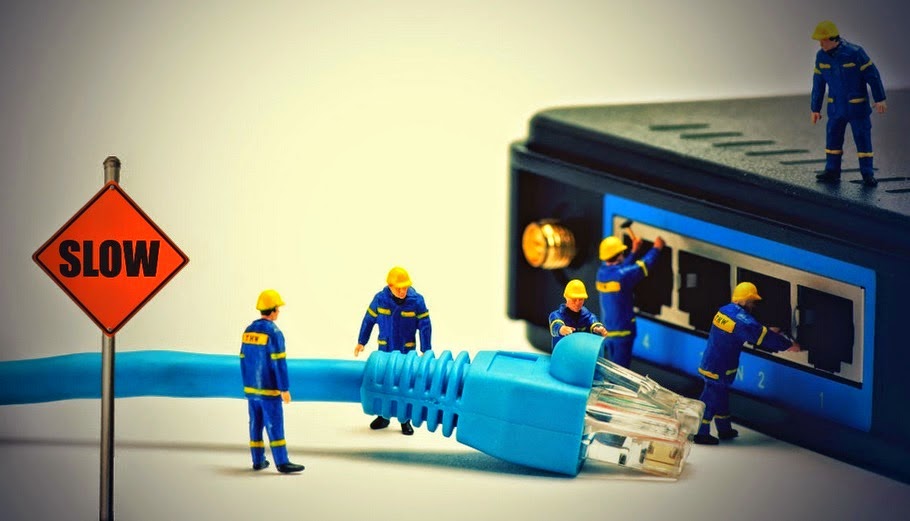
How to Speed up slow internet connection?
1] Optimize your Browser
First of all this simple tip to boost up internet connection. If you're using some old version of browsers or internet explorer then go and optimize that browser to latest version of optimized browser. I would suggest to use Google Chrome. Google chrome uses less memory and bandwidth than other browsers. Yeah,you can also try for Maxthon browser or opera browser but my strong suggestion is only Google Chrome.

2] Speed up Internet with Top Public DNS Servers
DNS server is also playing an important role in the increasing the speed of your internet connection.Using this trick you can boost up your internet speed on windows easily. Now let's see how to boost the internet connection's speed by using public DNS server addresses.
List of top 10 high speed internet DNS server addresses
Google:
Preferred DNS server - 8.8.8.8
Alternate DNS server - 8.8.4.4
Comodo DNS:
Preferred DNS server - 8.26.56.26
Alternate DNS server - 8.20.247.20
Norton DNS:
Preferred DNS server - 198.153.192.1
Alternate DNS server - 198.153.194.1
OpenDNS:
Preferred DNS server - 208.67.222.222
Alternate DNS server - 208.67.220.220
Level3:
Preferred DNS server - 209.244.0.3
Alternate DNS server - 209.244.0.4
ScrubIT3:
Preferred DNS server - 67.138.54.120
Alternate DNS server - 207.225.209.77
OpenNIC4:
Preferred DNS server - 69.164.208.50
Alternate DNS server - 216.87.84.211
Public-Root5:
Preferred DNS server - 199.5.157.131
Alternate DNS server - 208.71.35.137
DNS Advantage:
Preferred DNS server - 156.154.70.1
Alternate DNS server - 156.154.71.1
SmartViper:
Preferred DNS server - 208.76.50.50
Alternate DNS server - 208.76.51.51
Steps to perform to speed up internet connection using Public DNS server
- Go to Control Panel
- Open Network and Sharing Center
- Then Open Local Area Connection and select IPV4 and properties

- Now Click on Use the following DNS Server addresses and change it with any of above given top public DNS Address and click on OK.

You've now boost up your internet connection using Public high speed DNS Server.
3] Using Command Prompt ( CMD ) to speed up slow internet connection
Yes,you can also boost up internet speed connection using cmd trick. This trick is simple and I would like to say this trick won't increase speed internet connection dramatically but definitely it will boost the existing connection to better performance. So,lets see how to do this.
Steps to perform to boost internet connection using command prompt
- Click on Start and Select all programs
- Click on accessories and select command prompt
- Now,run cmd as administrator
- Type following lines in command prompt and hit enter
netsh int tcp show global
netsh int tcp set global chimney=enabled
netsh int tcp set global autotuninglevel=normal
netsch int tcp set global congestionprovider=ctcp

That's all setting to boost up internet connection using command prompt.
4] Speed Internet Connection Using Microsoft by 20%
Most of the Windows computer users don't know that the Microsoft has reserved 20% of our internet bandwidth for some of their own purposes like Windows update. By doing some changes on Local group policy of Windows computers, we can use the internet connection's maximum bandwidth.
Steps to perform to boost internet connection using microsoft by 20%
- Click on Start Menu and type run and hit enter. ( Use Windows key + R )
- Type gpedit.msc on run command and hit enter.
- Now go to Local Group Policy --> Computer Configuration --> Administrative Templates --> Network.
- Now double click on QoS Packet Scheduler
- Then double click on Limit reservable bandwidth

- Now a window will appear. In that window, select Enabled and then make bandwidth limit to 0 (zero). Finally click on OK.

That's all about how to increase speed up a slow internet connection . Hope you enjoyed a lot and if you've got any new tricks then feel free to share here.Thanks for reading this article and don't forget to share your response on 4 ways to speed up slow internet connection. Have a Good bay and enjoy new internet speed.


