Ofer For You (1)

Showing posts with label chrome. Show all posts

Tuesday, 21 October 2014

Google increases 2-step verification with USB Security Key option

Google2StepVerificationPage
Today, Google announced that they are giving people the option of strengthening their 2-step verification process. The 2-step verification currently asks for a verification code from your phone in addition to your password.
But for those looking for additional security, Google is now offering a second factor which includes a Security Key as a physical USB that only works after verifying the login site is truly a Google web-site. This allows you to be sure that the cryptographic signature cannot be phished.
You simply need to insert the Security Key into your computer’s USB port and touch it when prompted in Chrome.
According to Google:
Security Key and Chrome incorporate the open Universal 2nd Factor (U2F) protocol from the FIDO Alliance, so other websites with account login systems can get FIDO U2F working in Chrome today. It’s our hope that other browsers will add FIDO U2F support, too. As more sites and browsers come onboard, security-sensitive users can carry a single Security Key that works everywhere FIDO U2F is supported. - Google
The Security Key is free but you will need to buy a compatible USB device from a U2F participating vendor. No mobile connection or batteries are needed.

By "Kunal Vohra", Director@H2K

Still Having Problem..!!! Connect with Admin
BBM: 7F72A48D


 Kunal Vohra
Download Our Official Android App & Get Free Internet


"The Hackers Street"

For Daily Updates 

Thursday, 7 August 2014

Google releases 64-bit Chrome browser for Windows


Google releases 64-bit Chrome browser for Windows
Google has upgraded Chrome browser for Windows 7 and Windows 8 to 64-bit, which is now available to the public in beta.

By "Kunal Vohra" Director @ H2K

Upgrading the browser's bit count has made it faster and more secure, according to Google.Google announced in June that it had upgraded its Chrome browser for Windows 7 and Windows 8 to 64-bit, and now that version of the browser is available to the public in beta.

The 64-bit Chrome for Windows build first arrived in preview builds for developers last month, and this is the first time the general public has had access to a steady build.

The beta is available now from Google's official Chrome releases page.

Max beta
"The new version replaces the existing version while preserving all your settings and bookmarks, so there's no need to uninstall a current installation of Chrome," Google's release blog promises.

However it's important to remember that as a beta version of Chrome, this 64-bit release is likely far from stable.

If you do encounter any bugs you can let Google know on its Chromium code page.

In the meantime, the less adventurous out there might want to wait for a full, official release of Google's 64-bit Chrome for Windows, which is more than likely right around the corner.


Still Having Problem..!!! Connect with Admin Kunal Vohra
"The Hackers Street"Download Our Official Android App & Get Free Internet


Monday, 14 July 2014

How to find password using inspect element

Your Admin Kunal Vohra brings you a trick "How to find password using inspect element". Read it , enjoy it, share it.


This works only with Google Chrome


Step One: Open Google Chrome. Go to the website that you want to the steal that certain password from. (ex. YouTube, Facebook, G mail)

Step Two: Go to the login interface. If they use Google Chromes program to save passwords, then your in luck.

Step Three: Highlight the password.

Step Four: Right click > Inspect Element

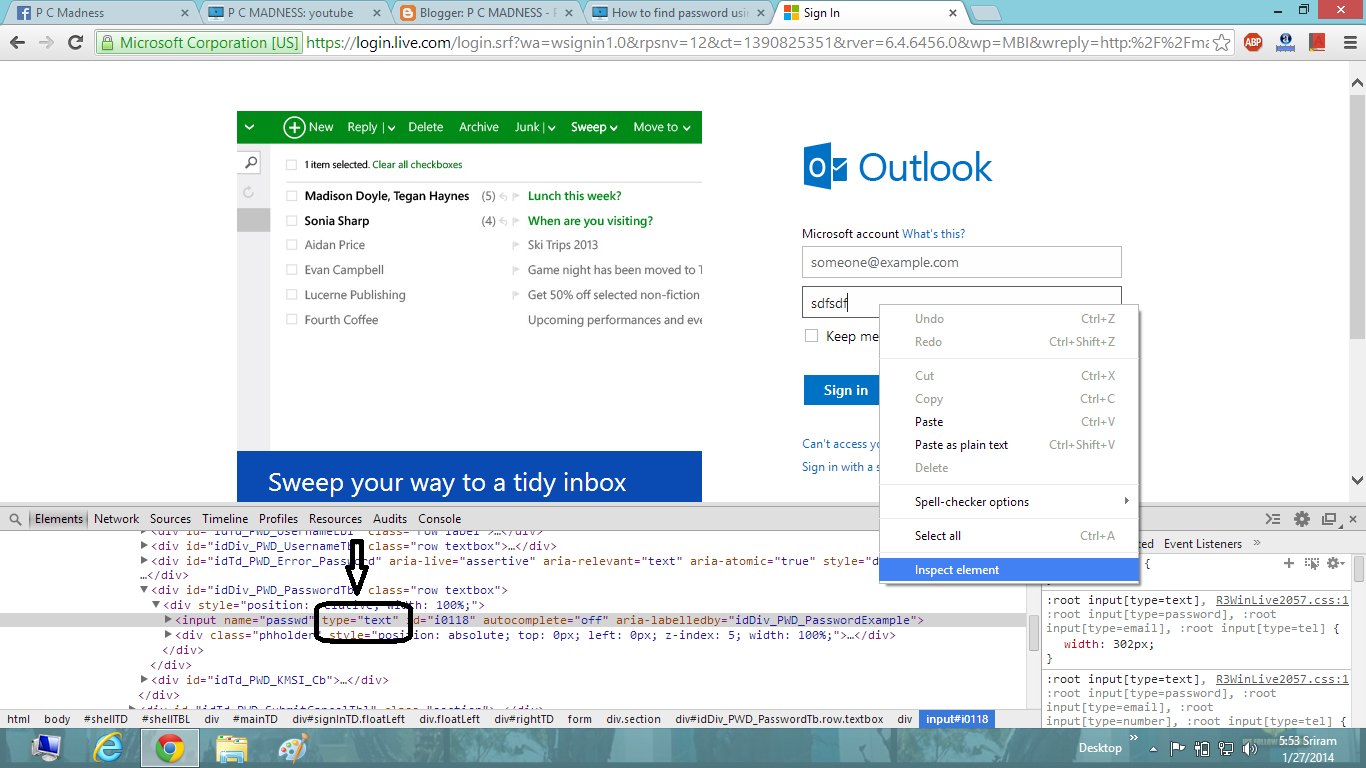
Step Five: This is where things get tricky. A box with a bunch of codes should popup below. The line you're looking for should be highlighted. Look for the following code:" <input type=''password'' "

Step Six: Right click > Edit Attribute

Example image 1

Example image 2

Step Seven: Now double click on it and rename 'password' to 'text' and hit enter.

 ---> 

Step Eight: Copy down the password, and rename 'text' back to 'password'. Also, click the 'x' in the top right corner of the box.
When attribute = text


Still Having Problem..!!! Connect with Admin Kunal Vohra

Download Our Official Android App & Get Free Internet*

"The Hackers Street"

For Daily Updates