Ofer For You (1)

Friday, 11 April 2014

Most Used & Preffered Shortcut Keys of Windows


Here some tips for you guys.


Keyboard Shorcuts (Microsoft Windows)


1. CTRL+C (Copy)
2. CTRL+X (Cut)
...... 3. CTRL+V (Paste)
4. CTRL+Z (Undo)
5. DELETE (Delete)
6. SHIFT+DELETE (Delete the selected item permanently without placing the item in the Recycle Bin)
7. CTRL while dragging an item (Copy the selected item)
8. CTRL+SHIFT while dragging an item (Create a shortcut to the selected item)
9. F2 key (Rename the selected item)
10. CTRL+RIGHT ARROW (Move the insertion point to the beginning of the next word)
11. CTRL+LEFT ARROW (Move the insertion point to the beginning of the previous word)
12. CTRL+DOWN ARROW (Move the insertion point to the beginning of the next paragraph)
13. CTRL+UP ARROW (Move the insertion point to the beginning of the previous paragraph)
14. CTRL+SHIFT with any of the arrow keys (Highlight a block of text)
SHIFT with any of the arrow keys (Select more than one item in a window or on the desktop, or select text in a document)
15. CTRL+A (Select all)
16. F3 key (Search for a file or a folder)
17. ALT+ENTER (View the properties for the selected item)
18. ALT+F4 (Close the active item, or quit the active program)
19. ALT+ENTER (Display the properties of the selected object)
20. ALT+SPACEBAR (Open the shortcut menu for the active window)
21. CTRL+F4 (Close the active document in programs that enable you to have multiple documents opensimultaneou sly)
22. ALT+TAB (Switch between the open items)
23. ALT+ESC (Cycle through items in the order that they had been opened)
24. F6 key (Cycle through the screen elements in a window or on the desktop)
25. F4 key (Display the Address bar list in My Computer or Windows Explorer)
26. SHIFT+F10 (Display the shortcut menu for the selected item)
27. ALT+SPACEBAR (Display the System menu for the active window)
28. CTRL+ESC (Display the Start menu)
29. ALT+Underlined letter in a menu name (Display the corresponding menu) Underlined letter in a command name on an open menu (Perform the corresponding command)
30. F10 key (Activate the menu bar in the active program)
31. RIGHT ARROW (Open the next menu to the right, or open a submenu)
32. LEFT ARROW (Open the next menu to the left, or close a submenu)
33. F5 key (Update the active window)
34. BACKSPACE (View the folder onelevel up in My Computer or Windows Explorer)
35. ESC (Cancel the current task)
36. SHIFT when you insert a CD-ROMinto the CD-ROM drive (Prevent the CD-ROM from automatically playing)


Dialog Box - Keyboard Shortcuts


1. CTRL+TAB (Move forward through the tabs)
2. CTRL+SHIFT+TAB (Move backward through the tabs)
3. TAB (Move forward through the options)
4. SHIFT+TAB (Move backward through the options)
5. ALT+Underlined letter (Perform the corresponding command or select the corresponding option)
6. ENTER (Perform the command for the active option or button)
7. SPACEBAR (Select or clear the check box if the active option is a check box)
8. Arrow keys (Select a button if the active option is a group of option buttons)
9. F1 key (Display Help)
10. F4 key (Display the items in the active list)
11. BACKSPACE (Open a folder one level up if a folder is selected in the Save As or Open dialog box)

Microsoft Natural Keyboard Shortcuts


1. Windows Logo (Display or hide the Start menu)
2. Windows Logo+BREAK (Display the System Properties dialog box)
3. Windows Logo+D (Display the desktop)
4. Windows Logo+M (Minimize all of the windows)
5. Windows Logo+SHIFT+M (Restorethe minimized windows)
6. Windows Logo+E (Open My Computer)
7. Windows Logo+F (Search for a file or a folder)
8. CTRL+Windows Logo+F (Search for computers)
9. Windows Logo+F1 (Display Windows Help)
10. Windows Logo+ L (Lock the keyboard)
11. Windows Logo+R (Open the Run dialog box)
12. Windows Logo+U (Open Utility Manager)
13. Accessibility Keyboard Shortcuts
14. Right SHIFT for eight seconds (Switch FilterKeys either on or off)
15. Left ALT+left SHIFT+PRINT SCREEN (Switch High Contrast either on or off)
16. Left ALT+left SHIFT+NUM LOCK (Switch the MouseKeys either on or off)
17. SHIFT five times (Switch the StickyKeys either on or off)
18. NUM LOCK for five seconds (Switch the ToggleKeys either on or off)
19. Windows Logo +U (Open Utility Manager)
20. Windows Explorer Keyboard Shortcuts
21. END (Display the bottom of the active window)
22. HOME (Display the top of the active window)
23. NUM LOCK+Asterisk sign (*) (Display all of the subfolders that are under the selected folder)
24. NUM LOCK+Plus sign (+) (Display the contents of the selected folder)
25. NUM LOCK+Minus sign (-) (Collapse the selected folder)
26. LEFT ARROW (Collapse the current selection if it is expanded, or select the parent folder)
27. RIGHT ARROW (Display the current selection if it is collapsed, or select the first subfolder)

Shortcut Keys for Character Map
After you double-click a character on the grid of characters, you can move through the grid by using the keyboard shortcuts:


1. RIGHT ARROW (Move to the rightor to the beginning of the next line)
2. LEFT ARROW (Move to the left orto the end of the previous line)
3. UP ARROW (Move up one row)
4. DOWN ARROW (Move down one row)
5. PAGE UP (Move up one screen at a time)
6. PAGE DOWN (Move down one screen at a time)
7. HOME (Move to the beginning of the line)
8. END (Move to the end of the line)
9. CTRL+HOME (Move to the first character)
10. CTRL+END (Move to the last character)
11. SPACEBAR (Switch between Enlarged and Normal mode when a character is selected)
Microsoft Management Console (MMC)
Main Window Keyboard Shortcuts
1. CTRL+O (Open a saved console)
2. CTRL+N (Open a new console)
3. CTRL+S (Save the open console)
4. CTRL+M (Add or remove a console item)
5. CTRL+W (Open a new window)
6. F5 key (Update the content of all console windows)
7. ALT+SPACEBAR (Display the MMC window menu)
8. ALT+F4 (Close the console)
9. ALT+A (Display the Action menu)
10. ALT+V (Display the View menu)
11. ALT+F (Display the File menu)
12. ALT+O (Display the Favorites menu)

MMC Console Window Keyboard Shortcuts


1. CTRL+P (Print the current page or active pane)
2. ALT+Minus sign (-) (Display the window menu for the active console window)
3. SHIFT+F10 (Display the Action shortcut menu for the selected item)
4. F1 key (Open the Help topic, if any, for the selected item)
5. F5 key (Update the content of all console windows)
6. CTRL+F10 (Maximize the active console window)
7. CTRL+F5 (Restore the active console window)
8. ALT+ENTER (Display the Properties dialog box, if any, for theselected item)
9. F2 key (Rename the selected item)
10. CTRL+F4 (Close the active console window. When a console has only one console window, this shortcut closes the console)
Remote Desktop Connection Navigation


1. CTRL+ALT+END (Open the Microsoft Windows NT Security dialog box)
2. ALT+PAGE UP (Switch between programs from left to right)
3. ALT+PAGE DOWN (Switch between programs from right to left)
4. ALT+INSERT (Cycle through the programs in most recently used order)
5. ALT+HOME (Display the Start menu)
6. CTRL+ALT+BREAK (Switch the client computer between a window and a full screen)
7. ALT+DELETE (Display the Windows menu)
8. CTRL+ALT+Minus sign (-) (Place a snapshot of the active window in the client on the Terminal server clipboard and provide the same functionality as pressing PRINT SCREEN on a local computer.)
9. CTRL+ALT+Plus sign (+) (Place asnapshot of the entire client window area on the Terminal server clipboardand provide the same functionality aspressing ALT+PRINT SCREEN on a local computer.)

Microsoft Internet Explorer Keyboard Shortcuts


1. CTRL+B (Open the Organize Favorites dialog box)
2. CTRL+E (Open the Search bar)
3. CTRL+F (Start the Find utility)
4. CTRL+H (Open the History bar)
5. CTRL+I (Open the Favorites bar)
6. CTRL+L (Open the Open dialog box)
7. CTRL+N (Start another instance of the browser with the same Web address)
8. CTRL+O (Open the Open dialog box,the same as CTRL+L)
9. CTRL+P (Open the Print dialog box)
10. CTRL+R (Update the current Web )

Still Having Problem..!!! Connect with Admin Kunal Vohra

Download Our Official Android App & Get Free Internet*

"The Hackers Street"

For Daily Updates

Wednesday, 11 December 2013

How To Hack A Satellite


How To Hack A Satellite

In a few days we have heard of a couple of satellite attacks by hackers meanwhile surfing on the web I came across more than one occasion in satellite photos reporting strange structures that we asked the real intended use.

The successful attacks occurred in 2007 and 2008. The more serious of the two happened in ’08 when NASA had control of the Terra EOS earth observation system satellite disrupted for 2 minutes in June, and then a further 9 minutes in October. During that time, whoever took control had full access to the satellites’ systems, but chose to do nothing with it. The second hack affected the Landsat-7 satellite on two occasions, one in October of ’07, the other in July of ’08. Unlike the Terra OS incident, this hack did not see control taken away, but access was gained.
We read that Chinese hackers have taken control of NASA satellites for 11 minutes and we know how the news is disturbing. The satellites are a vital component in the process of information management, a stream of bits passes on our heads, no matter whether its a talk show or to military communications, they are there and hackers and militar government know it. It is a new challenge, access and control this data.
What is going on in our heads? The phenomenon of hacking satellites seems to be fashionable. Let me suggest a precious reading (Hacking a Bird in the sky), a proof of concept made by the popular security experts Jim Geovedi, Raditya Iryandi and Raoul Chiesa that have approached the problem in the past.
What if they could get hold? Which scenario we face if they were able to govern satellite communications?  The answer is obvious as terrifying.
But the satellites are really vulnerable? Current satellite systems are vulnerable to several type of attacks but the problem is known and from several parts is working to improve its security.
Without going deep in the topic we can enumerate the main threats for those systems:
  • Denial of Service (Jam Uplink, Overpower Uplink, Jam Downlin)
  • Attack to Orbital Positioning (Raging Transponder Spoofing, Direct Commanding,Command Replay,Insertion)
To show e sensible interest on this issue by Governments and cyber criminals Congress of the U.S has made a report entitled “U.S.-CHINA ECONOMIC AND SECURITY REVIEW COMMISSION“.
Malicious cyber activities can be carried out to either destroy the system rendering it useless, or to exploit it to access to sensible informations breaking intelligence actions. Interestingly, the report points to the use of ground stations outside of the U.S. to control satellites as weak points. The reason being they use the Internet for data access and communication, not a closed link.
Which are the conclusions proposed in the report ?
 • China is one of the top space powers in the world today.The prestige of space exploration and the national security benefits of space systems serve as primary motivators for Chinese decisionmakers.
• China views all space activities in the context of ‘‘comprehensive national power.’’ This concept includes many dimensions, but military aspects are fundamental.
• China’s civil space programs have made impressive achievements over the past several decades.
• China seeks new opportunities to sell satellites as well as satellite and launch services in international commercial space markets. Chinese firms’ prospects for greater success in this field remain uncertain over the near term. However, China’s international space-related diplomatic initiatives and their firms’ ability to offer flexible terms on sales to developing countries may provide additional opportunities.
• In the military sphere, China appears to seek ‘‘space supremacy.’’ The PLA aims to implement this policy through two tracks. First, they increasingly utilize space for the purposes of force enhancement. The best example is China’s integration of space-based sensors and guided weapons. Second, they seek the capabilities  to deny an adversary the use of space in the event of a conflict. To this end, China has numerous, active, counterspace weapons programs with demonstrated capabilities. China’s military space and counterspace activities are part of a larger strategy for area control.
But are we sure that it is all China’s fault? Are they the only Country interested in the control of satellite communications? Of course not.
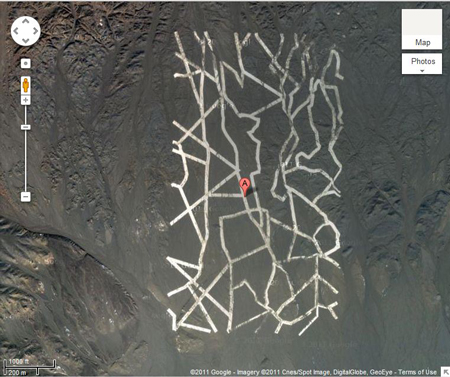
I leave you with a little mystery … In recent days the media spread the news of the discovery of satellite images which were taken strange structures in the Chinese desert.
What are they for? Some experts believe that these are structure in use for satellite calibration. So far so normal. This morning a collegue informed me that coordinates reported in the article related to NASA satellite hacking are related to the area where the strange calibration structures has been discovered. Amazing!!  The Chinese hack a NASA satellite to calibrate or to test it on presumed internal calibration structures? Journalistic error or what else? Something is not right!

Still Having Problem..!!! Connect with Admin Kunal Vohra

Download Our Official Android App & Get Free Internet*

"The Hackers Street"

For Daily Updates

Monday, 2 December 2013

How to steal Facebook Authentication cookies

How to steal Facebook Authentication cookies


Connect with admin : Kunal Vohra

How to hack a facebook account – or, basically how to hijack php sessions. Yes – this is old news – yes its a common vulnerability – but you get a better idea for what it is and how it works when things are explained in detail (with screenshots!).

Before we begin, however, I want to re-emphasize that it is VERY EASY to protect yourself against this sort of attack. Facebook supports HTTPS, so when you browse facebook (or twitter for that matter) or if you have it bookmarked – please make sure you’re using HTTPS:// rather than HTTP:// in the URL at the very least, if not using a VPN solution for further encryption. Also, if the ‘victim’ logs out of facebook, the attackers session becomes invalid – so it’s a good practice to actually log out of facebook and log back in again rather than using the ‘remember me’ checkbox.

Facebook like many sites operates using authentication cookies. Their auth cookies contain a variety of information, but for our purposes this is irrelevant. Here is a sanitized cookie for reference:


You can see the ‘lxe’ field is the login. We haven’t done any further research into what the various other fields mean, but using facebook without any kind of security you’re both leaking the email address used for your login and the session cookie.
First thing you’ll want to do is fire up your favorite packet capture application. For this example we’ve used Wireshark:
Next, set the filter in the top left to ” http.cookie contains “datr” “. This should show you only packets captured which contain the cookie we’re looking for. You can see that in this screenshot we’ve already captured a cookie.
Once you’ve found a suitable cookie, you can copy it into the buffer by right clicking on the cookie line, and clicking Copy -> Bytes (Printable Text Only)
Next you’ll want to open up firefox. You’ll need both greasemonkey and the cookieinjector script.
Simply browse to facebook – make sure you are not logged in:
Hit ALT-C to bring up the cookie injector dialog box:
Then paste in the cookie!
Hit refresh and – VIOLA! you’re now logged in as your victim! Now this doesn’t give you access to their credentials, this is about the equivalent to walking up to their workstation while they’re away from their desk and using facebook.
Neat huh? Pretty easy too. I smiled big when we demo’ed the attack in our lab – its old, sure, but being successful is always a good feeling!


Still Having Problem..!!! Connect with Admin Kunal Vohra

Download Our Official Android App & Get Free Internet*

"The Hackers Street"

For Daily Updates

Thursday, 14 November 2013

How to Remove Passwords From RAR Files?

How to Remove Passwords From RAR Files?

Option 1: Create a New Archive File Without Password Restriction

As a password can be set to protect the file from unauthorized access, when the file is double-clicked, the user is prompted to enter a password. But if you entered a wrong password, the file remains locked. Well, you can remove the password restrictions on RAR files by creating a new archive file.

1. Double-click the RAR file to open.

2. Enter the password when prompted. The contents of the file are then extracted.

3. Right-click the extracted file and click “Add to Archive.” The “Archive Name and Parameters” window launches.

4. Click the “Advanced” tab and then click “Set Password.”

5. Empty any text in the both password boxes in the Set Password window.

6. Click the “OK” button to save the settings. A new RAR archive file is created without a password.

Option 2: Remove the Password with a RAR Password Recovery

When you can not still access into the rar files with password protected, at this time you can take a rar password recovery tool to get in. RAR Password Unlocker is proved to be a helpful tool when you forgot WinRAR/RAR password and cannot open the RAR archives. It can recover RAR password at high speed via 3 attack options: Brute-force, Brute-force with user-defined Mask and Dictionary.

Rar Password Unlocker ==> http://www.passwordunlocker.com/rar-pass...overy.html

1. Download, install and launch RAR Password Unlocker.

2. Click “Open” to load your RAR file. Click “Open” again to continue.

3. Select the type of attack you want to use to retrieve your RAR password: brute-force attack, brute-force attack with mask or dictionary attack.

4. Click “Start” to retrieve your RAR password. The process may take several minutes to complete.

5. Click “OK” when you remove WINRAR password to exit RAR Password Unlocker.


Still Having Problem..!!! Connect with Admin Kunal Vohra
Download Our Official Android App & Get Free Internet
"The Hackers Street"
For Daily Updates